
Inspect your report, maintain definitions and keep updates predictable.
Open the Objects list
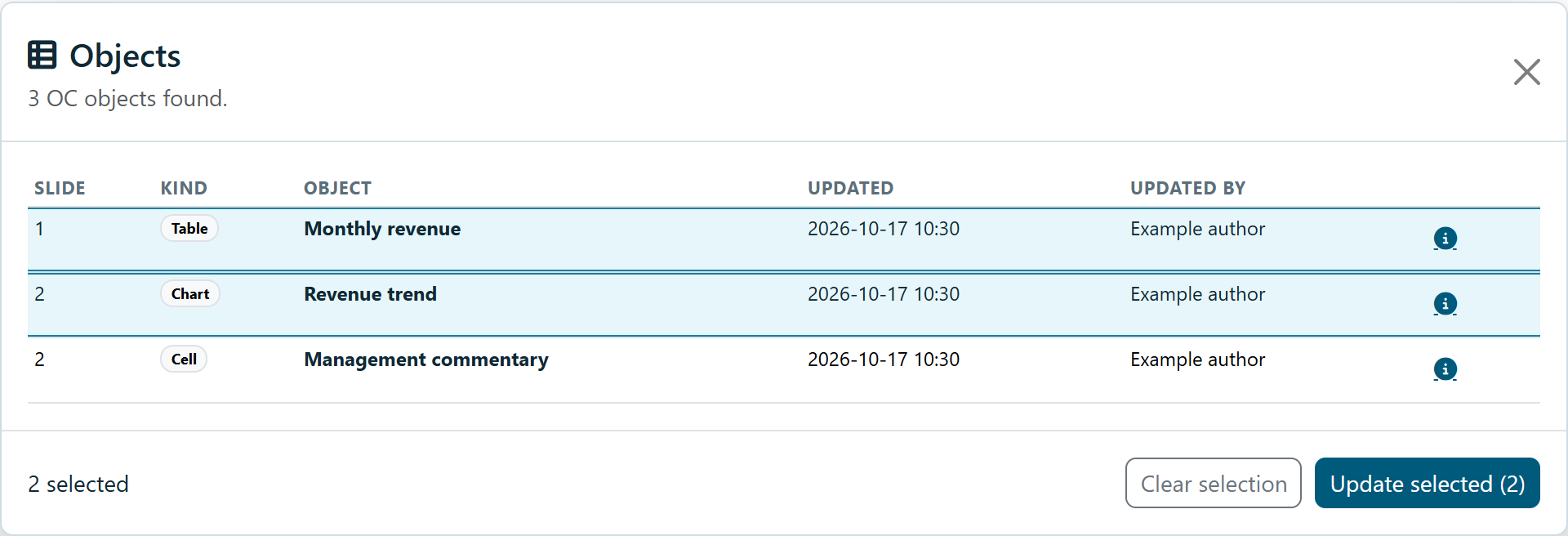
Select Objects, the list icon beside the three-line Quick actions menu at the bottom of the taskpane. It scans the presentation or document for inserted ADM objects. The list shows kind, object name, Updated and Updated by. PowerPoint also shows slide numbers.
Select and locate objects
- Click a row: Selects that object for updating and locates it in Word or PowerPoint.
- Ctrl-click a row: Adds or removes that row from the selection without locating it in Office.
- Shift-click a row: Selects the range from the selection anchor to that row.
- Ctrl+Shift-click: Adds a range to the existing selection.
- Clear selection: Removes the selection; main Update returns to the full report.
Update selected becomes available with a selection and an active connection. It refreshes only selected objects belonging to that connection. Objects from other connections are skipped. Selecting objects from different slides does not select those slides for deletion or editing.
Closing the list retains the selection for the main Update button. Reopening the list resets it. Disconnecting also clears it. Keyboard users can focus a row, use Space or Enter to select, Up/Down to move focus, and Shift+Up/Down to extend the selection.
Inspect an object
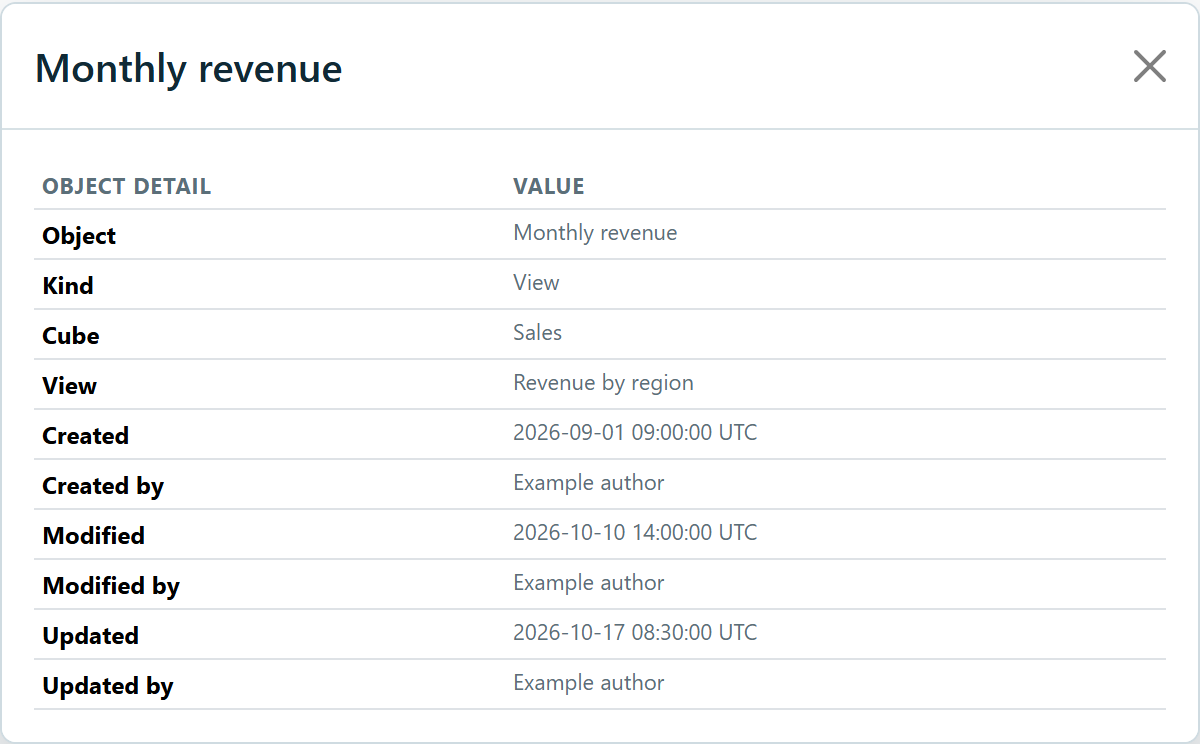
Click the information button on a row. The dialog heading is the object name. It shows source details and filter modes where available. The information button does not change which rows are selected for Update. Use Filter, Hold and Advanced to change an inserted object’s context without editing the shared definition.
Created, Modified and Updated
- Created / Created by: Creation of the reusable definition in the TM1 content store.
- Modified / Modified by: Modification audit of the reusable definition in TM1. Moving or formatting an Office object does not change it.
- Updated / Updated by: Last successful data fetch recorded for this inserted object, stored in the Word document or PowerPoint presentation.
Definition dates are read from the matching definition in the active TM1 library. They can show Unknown when the definition is unavailable. Older documents can also lack an Updated stamp. Saving editable text back to TM1 does not itself fetch data or advance Updated; a later successful refresh does. The Objects list displays Updated in local time; details include the stored timestamp.
Definition changes are shared
- Edit and Save in the library: The shared reusable definition. Reports apply it on subsequent resolution/update.
- Move, resize or format an inserted object: That instance in the current Office file.
- Delete a definition in the library: The reusable source definition. Other reports may depend on it.
- Delete an inserted object in Office: That instance in the document or presentation.
Save Word objects with the document
ADM uses content controls and document metadata to retain the identity and settings of inserted Word objects. Save the document after insertion, updates or filter overrides. Keep the ADM content boundaries intact; pasting only the visible text or image does not establish a new connected object. Place the cursor outside an existing ADM object before inserting another.
A maintenance routine
- Use meaningful names and descriptions for reusable definitions.
- Check dependencies before changing a source or deleting a definition.
- Keep ADM object boundaries intact when editing Word content.
- After a structural source change, update a copy of a representative report and review it.
- Read update errors; do not assume every object refreshed successfully.
Automated reporting
Some deployments use administrator-configured automation or bursting to create filtered report copies. It is not a general button in the standard taskpane described here. Ask your administrator for the approved template, filter mapping, output location and validation procedure before relying on automated output.