
Understand reader, author and administrator responsibilities.
Who can do what?
- Reader: Browse visible definitions, inspect, insert and Update reports.
- Author: Reader actions plus Add, Edit and Delete object definitions.
- TM1 administrator: Manage ADM author access and configure access to the ADM store.
ADM author access and source-data permissions are separate. Author access does not grant unrestricted cube access or permission to write values.
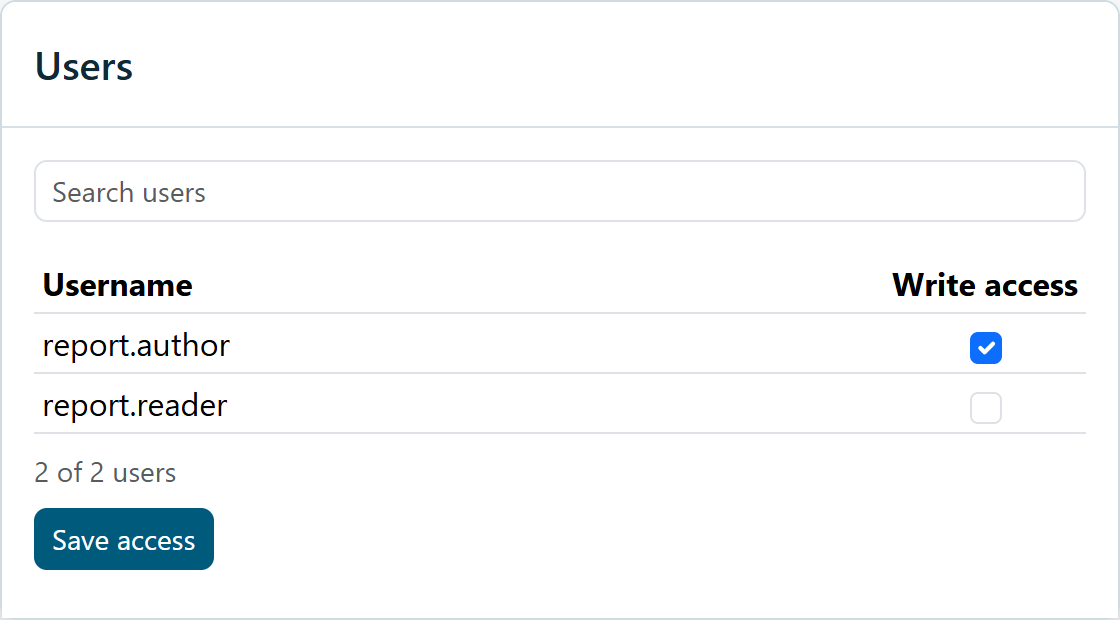
Administrator: enable author access
- Connect as a TM1 administrator
Open Quick actions (the three-line menu), then Users.
- Find the user
Search by username. The list shows non-administrator users with a Write access checkbox.
- Set access and save
Select Write access for authors, then click Save access. Wait for completion.
- Reconnect the affected user
Reconnect before checking whether author controls are available.
Reader here is an ADM permission role for a user of the add-in. It is not the same as a recipient who only opens the saved Word or PowerPoint file; that recipient does not need Intito Agentic Disclosure Management (ADM) to read the saved report.
Reader access and empty libraries
Administrator setup and Save access provision the ADM reader access used by the library. If objects should be visible, have an administrator save access and ask the user to reconnect. Newly created TM1 users may need this setup.
Member visibility
Source security determines what a user can read. A saved member that is no longer available may resolve to a readable fallback where supported. Check resolved members and report totals when users have different access. Writeback has separate permission checks.