
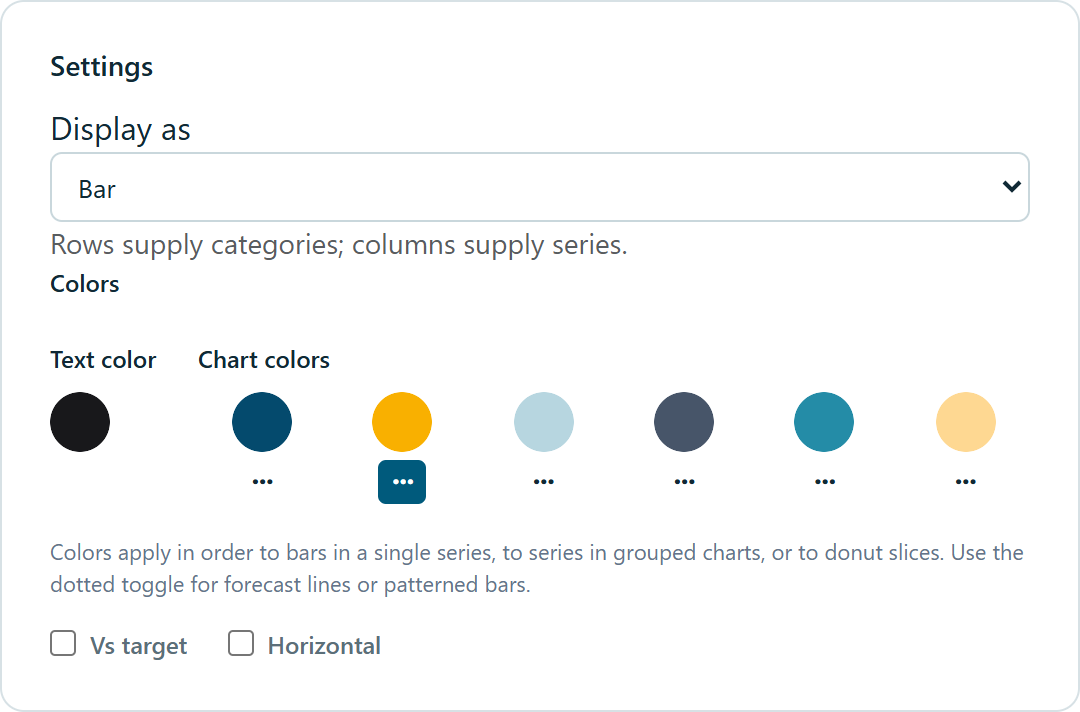
Create or edit a definition under Tables / Charts. In Settings, choose label attributes, then select a chart in Display as. Save and insert it.
Bar
Compare values across categories, with one or more series.
Set up your view
- Put categories on rows: months, regions, products or other members.
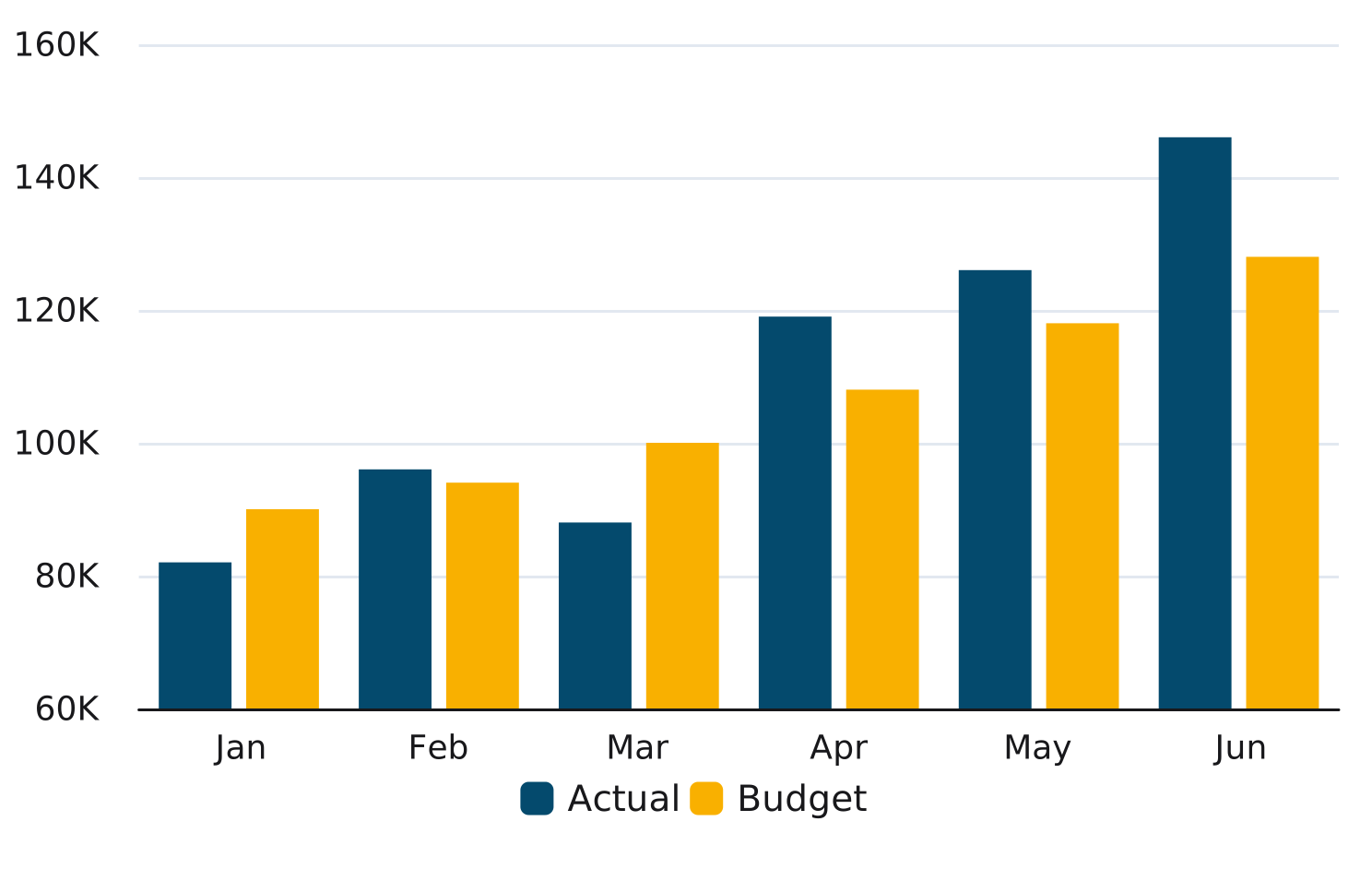
- Put each series on a separate column. In this example, Actual and Budget become two bars per month.
- Use numeric measures. Positive and negative values are supported. Missing cells do not produce bars.
- Horizontal switches categories to the vertical axis, in view order from top to bottom. It works independently of Vs target.
- Vs target uses the first column as actual and the second as target; further columns are ignored. Every row needs both numeric values. Below-target bars are red; at or above target is green. A thin black line marks the target and gray fills the shortfall only. Above-target bars stay green all the way to the actual value.
- Jan
Actual: 82,000
Budget: 90,000 - Feb
Actual: 96,000
Budget: 94,000 - Mar
Actual: 88,000
Budget: 100,000 - Apr
Actual: 119,000
Budget: 108,000 - May
Actual: 126,000
Budget: 118,000 - Jun
Actual: 146,000
Budget: 128,000
The row order in your view becomes the left-to-right category order. Include totals only when you want them plotted as categories.
Back to chart types ↑Line
Show a trend over an ordered set of categories.
Set up your view
- Put time periods or other ordered categories on rows.
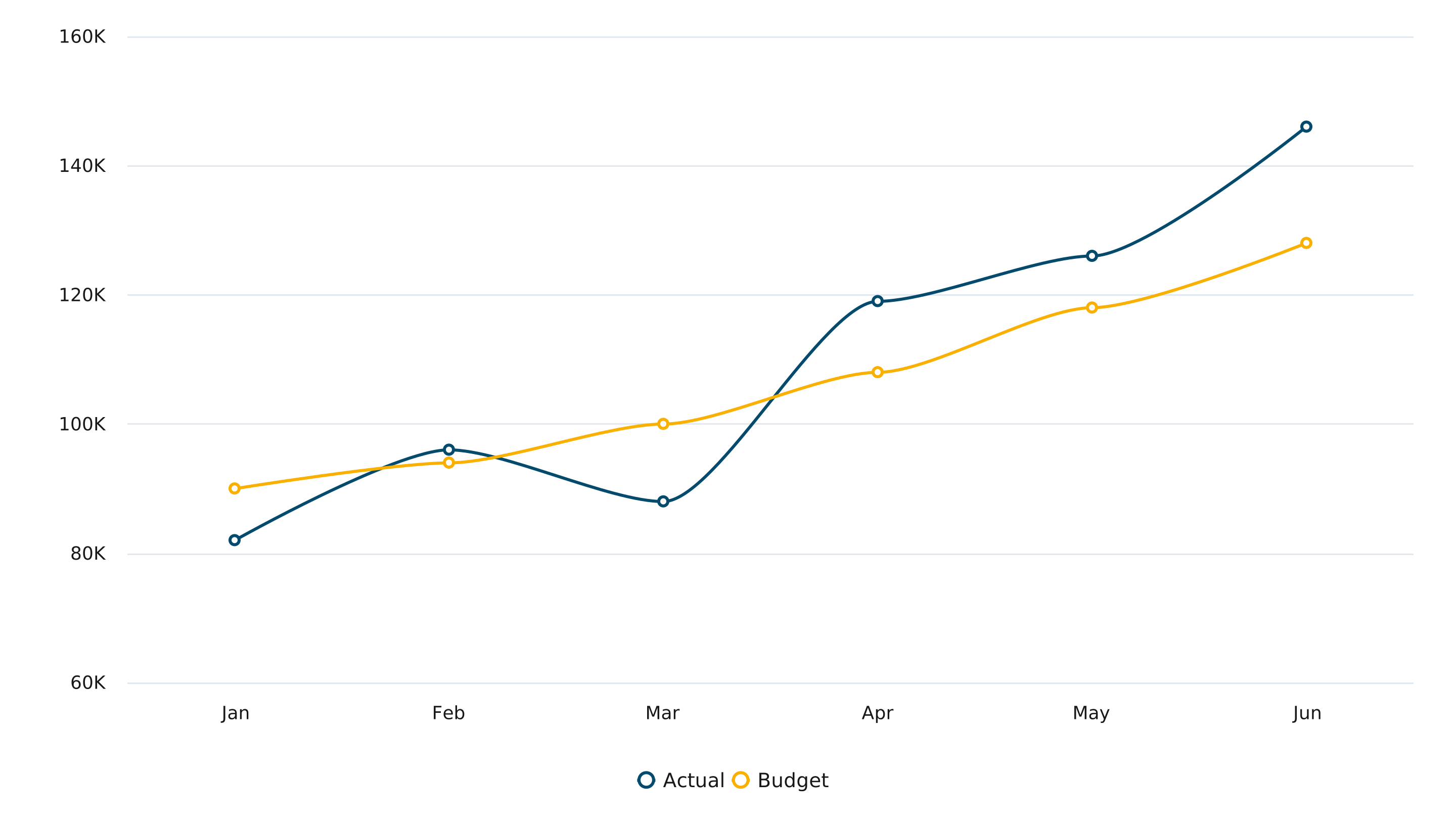
- Put each series on its own column. Each column becomes one line.
- Sort periods in the view before inserting. Missing values normally leave a gap in the line.
- With exactly two series, one solid and one dotted, OC connects the dotted forecast to the final actual point when the forecast begins in the immediately following category. Series may be in either column order; overlaps and empty intervening categories are not connected. Source values remain unchanged.
- Jan
Actual: 82,000
Budget: 90,000 - Feb
Actual: 96,000
Budget: 94,000 - Mar
Actual: 88,000
Budget: 100,000 - Apr
Actual: 119,000
Budget: 108,000 - May
Actual: 126,000
Budget: 118,000 - Jun
Actual: 146,000
Budget: 128,000
Categories are equally spaced and follow the view order. Lines are gently smoothed; use the source values when reading exact amounts.
Back to chart types ↑Pie / donut
Show how categories contribute to a whole.
Set up your view
- Put slice categories on rows.
- Put the measure to display in the first data column. Any additional columns are ignored.
- Values must be non-negative, with at least one positive value. Zero or missing values contribute no slice.
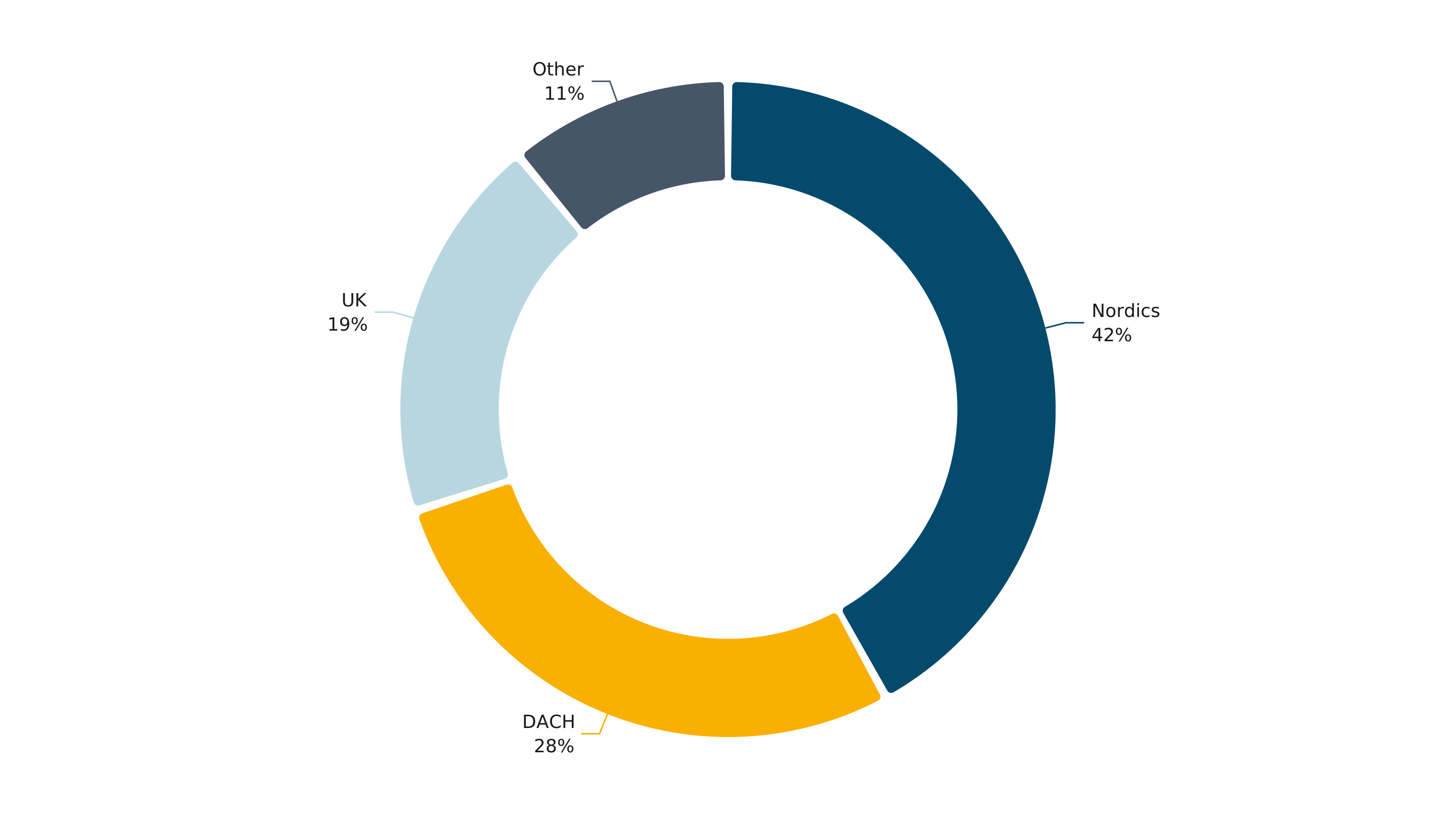
- Nordics: 42
- DACH: 28
- UK: 19
- Other: 11
Select Pie in Settings to create this donut. Its inner radius is 70% of the outer radius. Slice names and their percentage of the total appear beside the donut, joined to their slices by connector lines. Omit a grand-total row when the other rows already add up to that total.
Back to chart types ↑Waterfall
Explain the movements between an opening and a closing value.
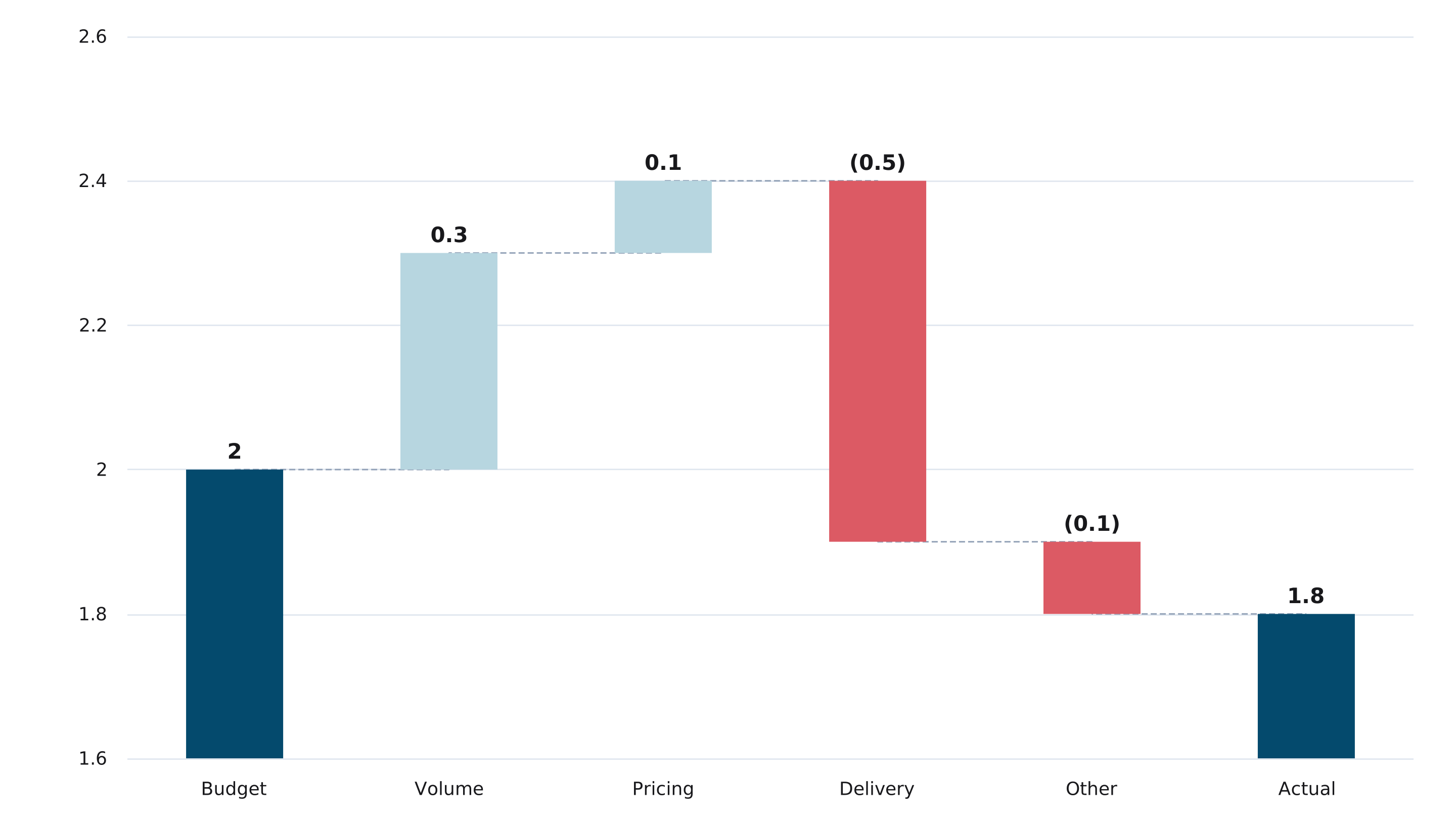
Set up your view
- Only the first data row is used. Put the bridge steps on columns, in the desired order.
- The first column is the opening total and the last column is the closing total. Both are anchored at zero, but may be clipped by the automatically fitted axis.
- Every middle column is a signed change: positive adds to the running total, negative subtracts. Supply changes, not cumulative balances.
- Use at least two columns and a numeric value in every used cell. Later rows are ignored.
- Profit ($m)
Budget: 2
Volume: 0.3
Pricing: 0.1
Delivery: -0.5
Other: -0.1
Actual: 1.8
The closing total is read directly from the last column, never calculated for you. Check that opening + changes equals closing when the bridge is meant to reconcile. In this example: 2.0 + 0.3 + 0.1 − 0.5 − 0.1 = 1.8. Decreases default to muted red. The Y-axis automatically fits the balances so small changes remain visible; zero may be outside the visible range.
Back to chart types ↑Card
Highlight one value, with up to two comparisons. The card width fits its content.
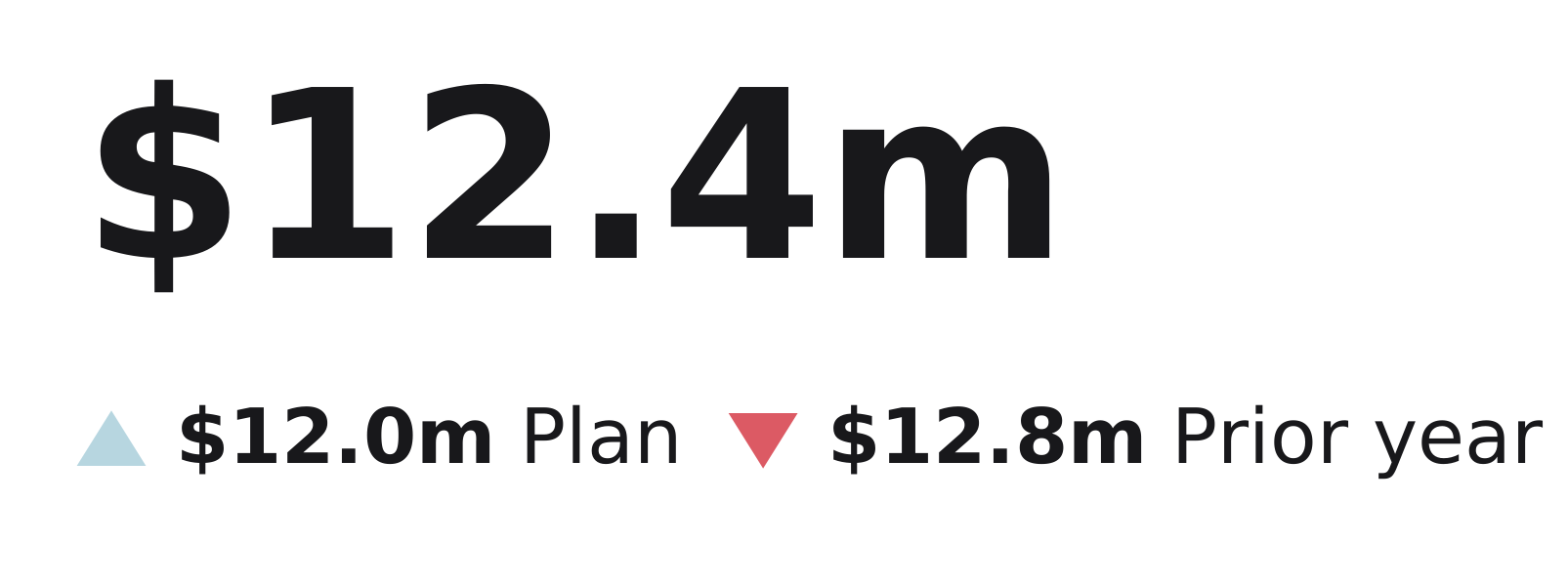
Set up your view
- Only the first data row is used. The first column supplies the large headline value.
- The second and third columns are optional comparisons, displayed side by side. Any further columns and rows are ignored.
- Supply numeric values with the formatting you want in the cube view. The card preserves their formatted display; it does not calculate displayed percentages or differences.
- An up arrow means the headline is greater than that comparison; a down arrow means it is smaller. Equal values show a neutral mark. Missing comparisons are omitted; the headline must have a numeric value.
- Revenue
Actual: $12.4m
Plan: $12.0m
Prior year: $12.8m
Here, $12.4m is above Plan ($12.0m) and below Prior year ($12.8m). Comparison text comes from the column members’ selected attribute, falling back to member names. Arrow direction describes the numbers; it does not decide whether the result is favorable.
Back to chart types ↑Dotted forecast lines and patterned bars
Toggle the dotted button beneath a palette swatch. Lines use dotted strokes; bars use diagonal hatching over that color. The pattern is saved with the definition and shown in multi-series legends. Target bars keep their fixed red/green treatment.
With exactly two line series, one solid and one dotted, OC connects the dotted forecast to the last actual point only when the forecast begins in the next category and their occupied ranges do not overlap. Either column order works. It does not bridge missing periods or change source values.
The four Bar variants
- Off
Vs target: Off
Result: Vertical grouped bars; each column is a series. - Off
Vs target: On
Result: Vertical actual bars with target markers. - On
Vs target: Off
Result: Horizontal grouped bars; rows run from top to bottom. - On
Vs target: On
Result: Horizontal actual bars with target markers.
For Vs target, put actual in the first column and target in the second. Later columns are ignored. Every row needs two numeric values. Below target is red; at or above target is green along the full actual bar. A black line marks target; gray shows a shortfall only.
Colors, labels and sizing
Text color controls chart text. Single-series bars use the six palette entries in category order; grouped bars and lines use series order, and donuts use slice order. Entries repeat after six. Single-series bars hide the legend; grouped bars show colored series names like line charts. Bar charts use a compact layout with light gridlines. Cards hide those swatches. Target bars have fixed red/green colors. Card down arrows stay red. Chart backgrounds are transparent and no automatic title is added.
Choose readable member attributes for labels. Long category labels wrap. Line, Bar and Waterfall axes fit their data automatically; zero may be outside the visible range. Numeric labels abbreviate large amounts (for example 1K, 1.25K and 1M) while retaining precision needed to distinguish ticks. Line and bar percentage axes use percent labels when the returned numeric cells are consistently percentage-formatted in TM1; values below one alone do not imply a percentage. Mixed or unformatted measures use a numeric axis. Check scales before comparing charts.
Move and resize charts in Office. To change labels, colors or chart type, edit the OC definition and Update. These are SVG images, not native Office charts with editable series. Hover tooltips are not part of the inserted image.