
Add your first connection
- Open Connection settings
Open the three-line Quick actions menu at the bottom of the taskpane, then select the Settings gear. In the connection list, choose Add connection.
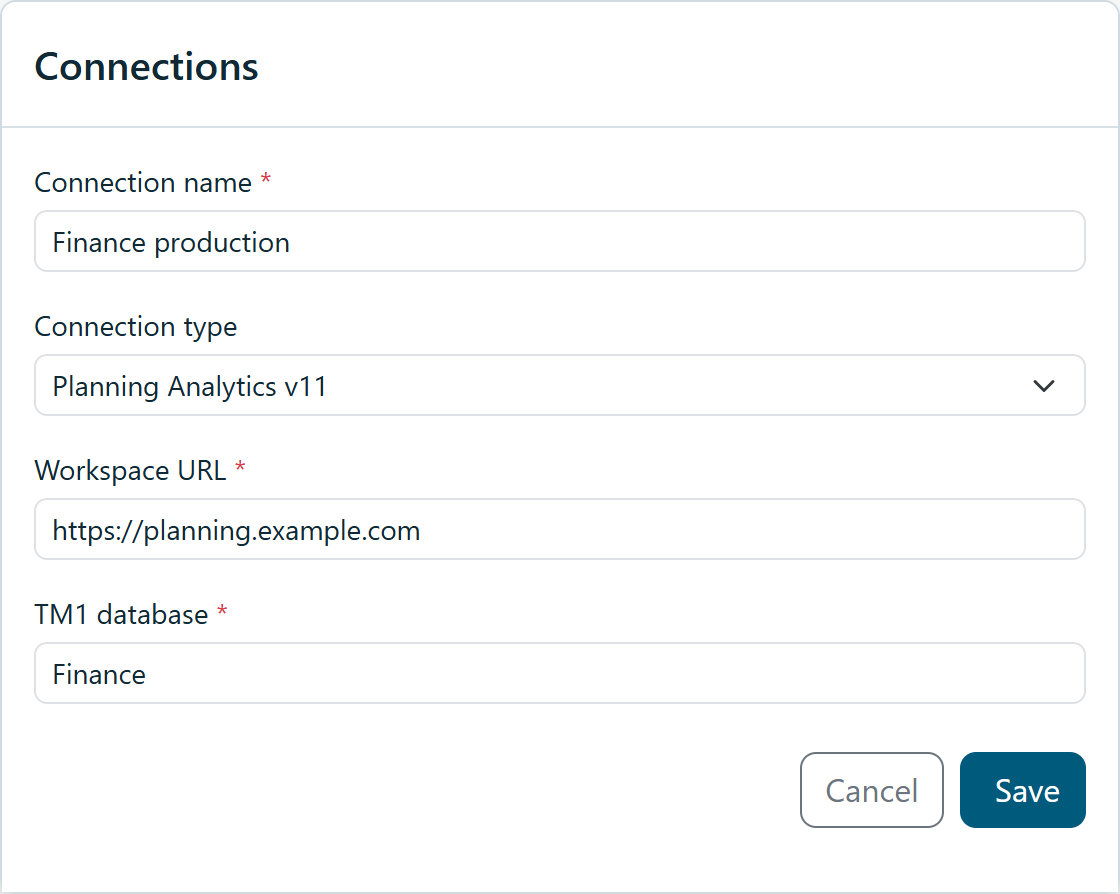
- Enter the connection details
Use the values supplied by your administrator. Give the connection a recognizable name, such as Finance production.
- Save, then connect
Save the connection, then select it in the taskpane connection list. Selecting another connection starts connecting; use the taskpane Connect button when needed. Complete any sign-in window that opens.
- Build reports
Continue to Build reports to add tables, charts, cells and Excel objects. The guide explains how to define each object, save it to the library and insert it in Office.
- Connection name: A friendly label for this environment.
- Connection type: Select the Planning Analytics connection type specified by your administrator.
- Workspace URL: Your organization’s Planning Analytics Workspace address.
- TM1 database: The exact database/server name provided by your administrator.
- Tenant ID: Enter the value supplied by your administrator when this field is required.
Settings and version
The Settings footer contains the Theme selector and the hosted add-in Version, including its build identifier. This is the taskpane version, not the installed Companion version.
Import / export transfers saved connection definitions as JSON. Review the destination and database names before using imported connections. This does not transfer a signed-in session.
Switch environments
Select the intended connection before connecting. Confirm the database before inserting, updating or saving data. Objects retain their source connection. Switching environments does not reassign existing objects; Update skips objects belonging to another connection.
The active connection is marked (connected). Switching clears the previous library and session context before loading the selected environment.
Connected, but the library is empty?
Clear the search and check the selected object type. If definitions should be present, ask a TM1 administrator to open Users → Save access, then reconnect. An empty library can also mean no definitions have been created yet.